VISFLOW USER GUIDE
VisFlow Browser Agent User Guide
1. What is VisFlow?
A browser agent that learns from one demonstration.
VisFlow is a browser agent that can learn from a single demonstration. Tell it what you need or demonstrate the workflow once. It observes the page, decides what to do next, and turns repetitive browser work into reusable execution knowledge.
You may have run into this too
Repetitive work such as expense claims, timesheets, and asset registration looks simple, but consumes time every day—and many internal systems still lack stable APIs.
A minor redesign or a moved dialog can break a rigid, preconfigured workflow.
Solutions that rely only on page structure struggle with Canvas, custom-rendered controls, and complex interactions.
A general agent may understand the goal but not the site-specific workflow or company rules, leading to repeated attempts at critical steps and an unfinished task.
What is missing is usually not the goal, but an understanding of the visible page state and the operational knowledge needed to act.
Visual-first execution + demonstration learning
Visual-first execution
Understand the page users actually see, then use page structure to supplement long pages and structured information.
Learning from demonstrations
Demonstrate the task naturally once. VisFlow captures reusable operational knowledge and applies it flexibly to similar tasks.
2. What can VisFlow do?
Find web information such as flights and traffic restrictions
Summarize the main content of the current page
Find, save, or play specified content
Complete registration, appointment, and other web forms
Handle repetitive office and back-office workflows
VisFlow does more than explain what to do: it can click and type for you. You can pause or take over at any time, and important actions such as submitting, paying, or deleting require confirmation.
3. Get started in three steps
Install the extension
Install VisFlow in Chrome or Edge.
Open the target page
Open the target website. Sign in first if the task requires an account.
Enter a task
Open VisFlow and describe what you need in one sentence.
4. Extension feature overview
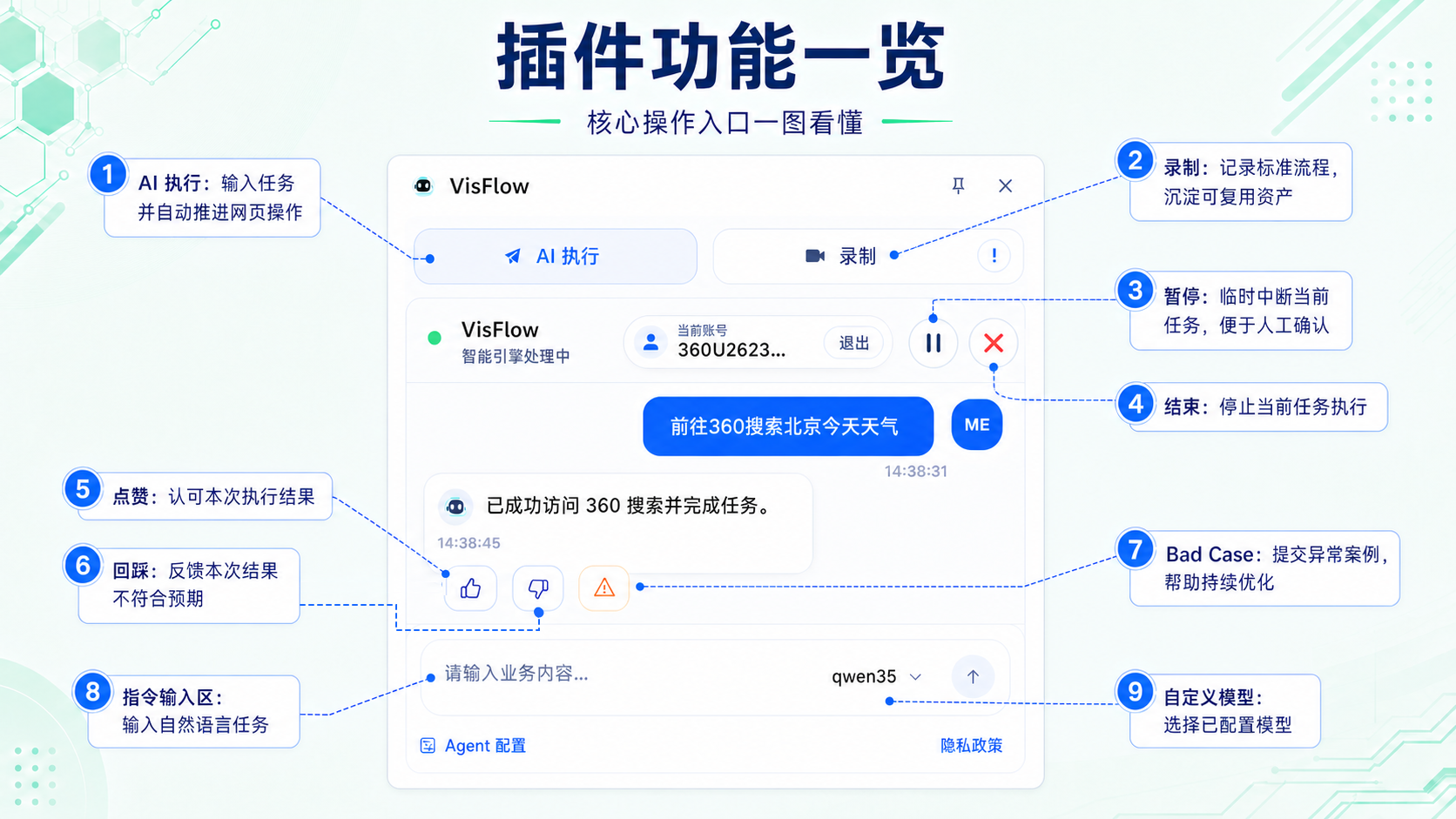
Install from the Chrome Web Store
No local package is required. Use the button below to open the official store listing in a new tab.
Install the VisFlow public beta
Chrome users can install VisFlow directly from the Chrome Web Store. Edge also supports compatible Chrome extensions. Pin VisFlow to the browser toolbar after installation for quick access on target pages.
- Open the official Chrome Web Store listing
- Confirm that the extension is named VisFlow
- Open the extension on the target page after installation
Connect reliable browser execution to your general agent
Use remote MCP to connect VisFlow to general agents such as Codex, Claude Code, WisCode, and Cursor.
Open the Agent Setup guide
The setup page generates connection details for the current account and VisFlow extension device, with client-specific instructions for adding MCP, confirming the connection, and invoking VisFlow.
- 1Open Agent Setup from the VisFlow extension
- 2Choose your agent and follow the steps to connect MCP
- 3Start a new conversation and verify the connection with a read-only browser task
See how Codex invokes VisFlow
This real demonstration shows a general agent handing a browser task to VisFlow and then organizing the result.
The demo covers the complete collaboration from task description and browser execution to final synthesis.
Frequently Asked Questions
Filter by topic or search by keyword to find guidance on installation, execution, recording, and troubleshooting.
Getting started
2 questionsQ01 How do I get started quickly?
After installing the extension, enter a task in natural language. For example:
- Open https://research.360.cn/products/fg-clip and summarize the document in no more than 100 words.
- Find a shoulder workout plan on Douyin with more than 2,000 saves and save it for me.
- Check today’s license-plate traffic restrictions on the Beijing Traffic Management Bureau website.
Q02 Which browsers are supported?
VisFlow currently supports Chrome and Edge. Use a recent browser version and follow the installation guide to configure the required permissions.
Capabilities and setup
3 questionsQ03 Can I connect my own model service?
Yes. After signing in, you can configure a model name, API key, and base URL to connect your own model service or enterprise LLM gateway. Usage is billed by the selected model provider according to its token consumption.
Q04 Can the extension complete every browser task?
No. Success depends on the foundation model and task complexity. If the first run fails, record a standard workflow so VisFlow can learn from it. If the task still fails, submit feedback through the Bad Case entry point.
Q07 Will AI submit, approve, or perform another high-risk action without my instruction?
No. VisFlow identifies high-risk actions—including submitting requests, approving, rejecting, deleting, paying, publishing, and changing permissions—and checks them against the user’s instruction. Actions without explicit authorization are blocked.
Demonstration recording
2 questionsQ05 How do I record a demonstration?
A demonstration captures a proven human workflow as reusable knowledge. After completing these steps, VisFlow can retrieve and reference the example for similar tasks.
- 01 Sign in with a 360 account.
- 02 Open the page you want to record, for example: https://research.360.cn/.
- 03 Open the browser extension and select Record.
- 04 Enter a clear, specific task description so the recording can be retrieved and reused later.
- 05 Select Start recording, then Allow in the permission dialog.
- 06 Complete the workflow step by step, recording every action until the task is finished.
- 07 Select VisFlow again from the browser toolbar to stop recording.
- 08 Select Save to upload the recording. You can also replay the steps first and save after reviewing them.
- 09 Check Saved Records to confirm that the example was uploaded successfully.
- 10 Select AI Execute and enter the original task description. VisFlow will retrieve the example and use it to complete the task.
Q06 What is the difference between recording and saved records?
Recording captures a standard human workflow as a reusable asset. Saved Records shows the upload process and stored entries so you can confirm that the workflow was saved successfully.
Troubleshooting
5 questionsQ08 Why is context not automatically carried over from my previous conversation?
The extension currently understands tasks from the active conversation and current page state; it does not read previous conversations by default. Include the necessary background in a new instruction when continuing earlier work.
Q09 Why has my task been stuck on one step for several minutes?
The network may be unstable or the page may be responding slowly. Wait briefly or restart the task. If the issue recurs, contact support.
Q10 Why does the extension say that the AI execution service is busy and my task has entered a queue?
The service is handling a high volume of requests and your task is queued. Keep the task open and wait; do not submit it again.
Q11 What causes a 502 Bad Gateway error?
This may be caused by network instability or a temporary service issue. Try again; if it continues, contact support.
Q12 Why can’t the extension execute tasks on the 360 intranet?
Confirm that your device is connected to the corporate network. If you are using company Wi-Fi, make sure the required internal connectivity service is active.
Contact support
1 questionQ13 How do I contact the team?
For help with installation, sign-in, task execution, or Bad Case feedback, contact the VisFlow team using the details below.
No matching questions found
Try a shorter keyword or switch to the All category.
More task examples
Public website examples:
Open https://research.360.cn/products/fg-clip and summarize the document in no more than 100 words.
Check today’s license-plate traffic restrictions on the Beijing Traffic Management Bureau website.
Open Toutiao and find the profile page for “Khamenei.”
Search Ctrip for flights from Beijing to Shanghai tomorrow.
Find a shoulder workout plan on Douyin with more than 2,000 saves and save it for me.
Sign in to NetEase Cloud Music on the web, open the trending chart, and play the first track.
360 intranet examples:
Open https://ssc.corp.qihoo.net/index.do and request a 23-inch monitor for the reception display system at the Shenzhen Nanshan office.
Open 360 Home and open the first post in the Party-Building Community section.
Open the 360 Online Learning platform, find “360 Group’s Updated Corporate Culture,” and play the course.